Run OpenClaw with a Local Model Using Ollama on BlueStacks AI

If you want to use Ollama and run a local model on your own system instead of relying on a cloud API key, you can. On Windows, the setup involves running Ollama locally, creating a tunnel into OpenClaw VM, and pointing OpenClaw to that model in its config.
Follow the steps below.
1. Install Ollama
There are two ways to install Ollama: via the command line or using an installer package from the official website.
Install from the command line:
irm https://ollama.com/install.ps1 | iex2. Fetch and Run the Model
Taking the Google Gemma 4 model as an example — run the command below. Remember to install a model that supports Tool Calling. We deployed this on a device equipped with 32 GB of GPU memory; please select an appropriate model based on the actual specifications of your device.
ollama run gemma4:e4bGemma 4 Model Variants
| Model Version | Total Params | Active Params | VRAM (BF16/Full) | VRAM (4-bit Quantized) | Recommended GPU (Quantized) |
|---|---|---|---|---|---|
| Gemma 4 E2B | ~5B | 2.3B | ~11 GB | ~3–4 GB | RTX 3060 (8G) / Mobile Devices |
| Gemma 4 E4B | ~8B | 4.5B | ~17 GB | ~5–6 GB | RTX 4060 (8G) / RTX 3060 |
| Gemma 4 26B MoE | 26B | 3.8B | ~52 GB | ~14–16 GB | RTX 3090 / 4090 (24G) |
| Gemma 4 31B Dense | 31B | 31B | ~64 GB | ~18–20 GB | RTX 4090 (24G) / RTX 5090 |
Once it starts running, Ollama will connect to the server and begin fetching the model's layers. After the download is complete, it will automatically verify the model and load it onto the GPU. Once deployment is complete, the terminal will automatically switch to the >>> prompt, and you can start chatting.
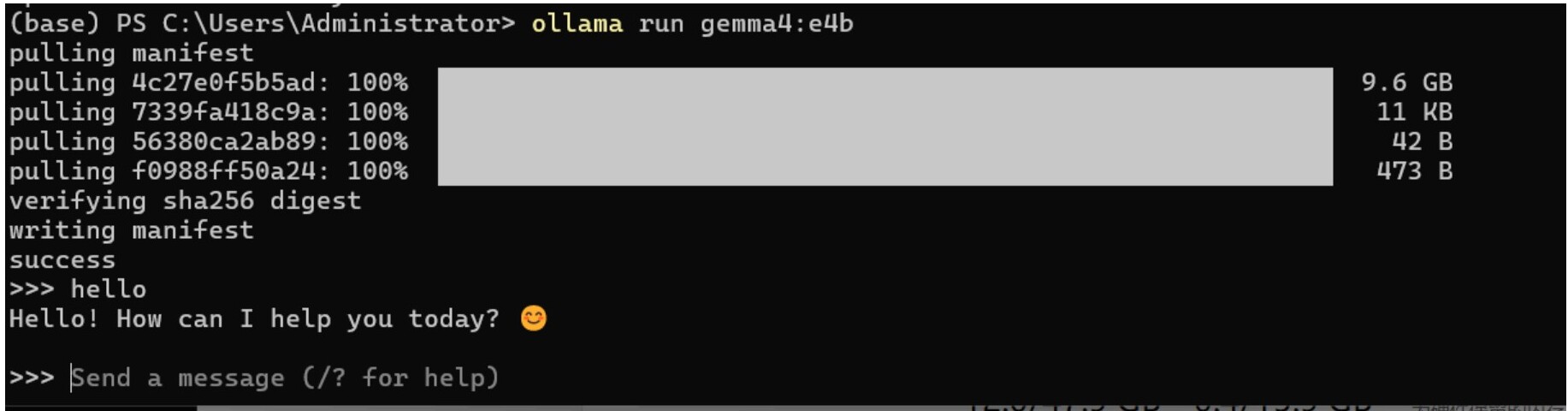
If the response is particularly slow, try switching to a smaller model and verify that the CUDA driver is installed correctly. If the driver is not installed properly, the graphics card will not be recognized and the model will run on the CPU, which will be slow.
3. Configure OpenClaw to Use the Local Model
3.1 Tunnel Connection
Ollama listens on 127.0.0.1:11434 by default, so we need to set up an SSH tunnel to the OpenClaw virtual machine. Run the command in Windows:
ssh -i ~\.ssh\id_openclaw -p 2222 -N -R 11434:127.0.0.1:11434 openclaw@localhost3.2 Update the Configuration
Modify the openclaw.json configuration. The main changes are as follows:
{
  "agents": {
    "defaults": {
      "model": {
        "primary": "host_ollama/gemma4:e4b",
        "fallbacks": []
      },
      "models": {}
    }
  }
}
{
  "workspace": "/home/openclaw/.openclaw/workspace",
  "compaction": {
    "mode": "safeguard",
    "reserveTokensFloor": 20000
  },
  "maxConcurrent": 4,
  "subagents": {
    "maxConcurrent": 8
  }
}
"models": {
  "mode": "merge",
  "providers": {
    "host_ollama": {
      "baseUrl": "http://127.0.0.1:11434/v1",
      "apiKey": "ollama",
      "api": "openai-responses",
      "models": [
        {
          "id": "gemma4:e4b",
          "name": "Gemma 4 e4B (Host)",
          "api": "openai-responses",
          "input": [
            "text"
          ],
          "reasoning": false,
          "cost": {
            "input": 0,
            "output": 0,
            "cacheRead": 0,
            "cacheWrite": 0
          },
          "contextWindow": 32768,
          "maxTokens": 8192
        }
      ]
    }
  }
}
After making changes, restart the OpenClaw gateway for the configuration to take effect:
openclaw gateway restartAfter restarting the OpenClaw Gateway, the local LLM model should be ready for normal use on OpenClaw.
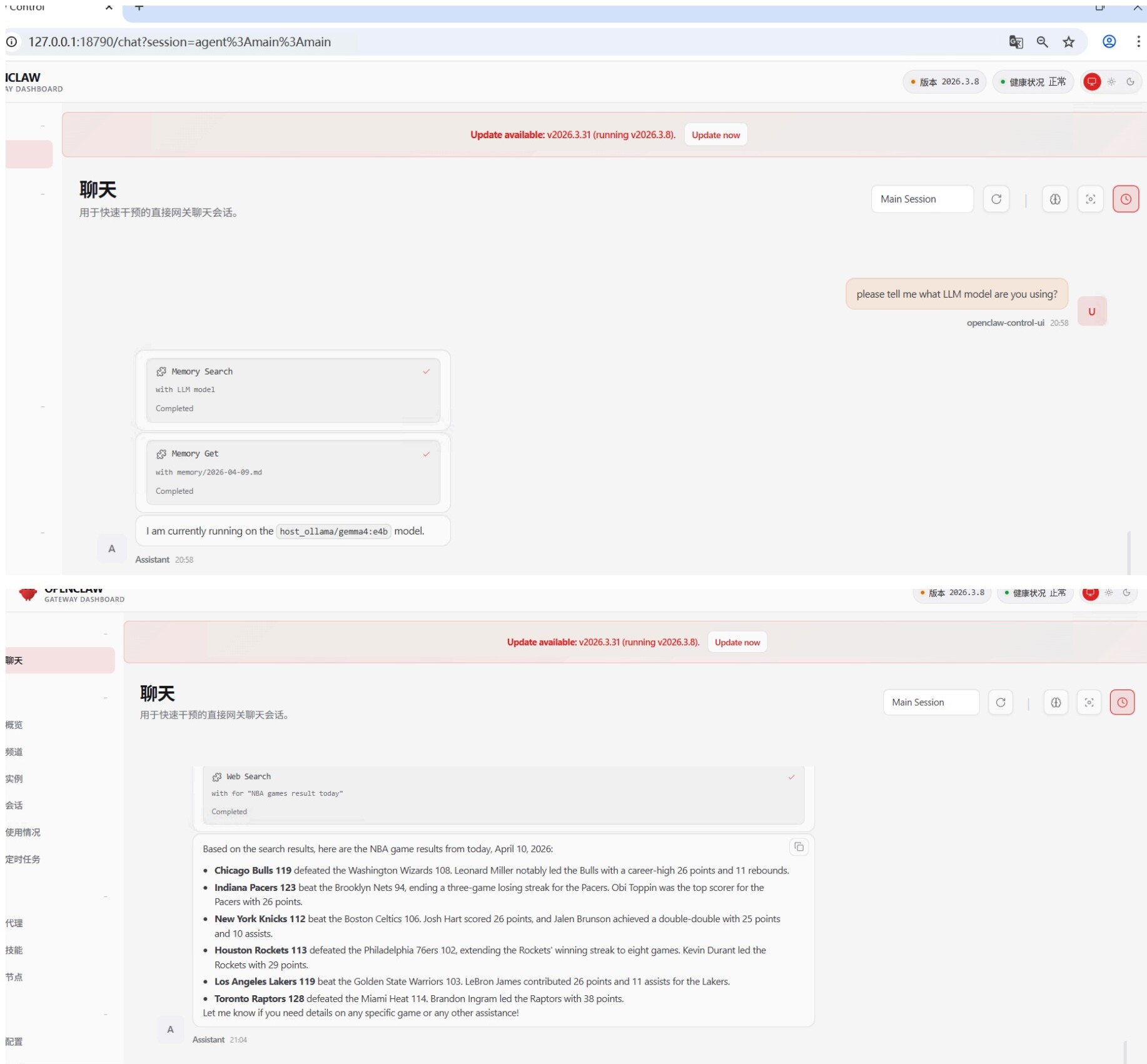
4. Some Issues You May Encounter
When sending messages via OpenClaw, the model may remain unresponsive for an extended period. This is likely due to insufficient GPU memory, as OpenClaw sends a large amount of context data by default, which consumes significant computational resources. We can use a simple command to test whether the model is responding properly:
curl http://127.0.0.1:11434/v1/chat/completions \
  -H "Content-Type: application/json" \
  -d '{
    "model": "gemma4:e4b",
    "messages": [
      {
        "role": "user",
        "content": "System Test: If you can see this message, please reply with the number 1."
      }
    ],
    "stream": false
  }'
If everything is working properly, a long string of JSON will be displayed. If you can find a response with "content":"1", it means the computing tunnel has been successfully established and the model is functioning normally.
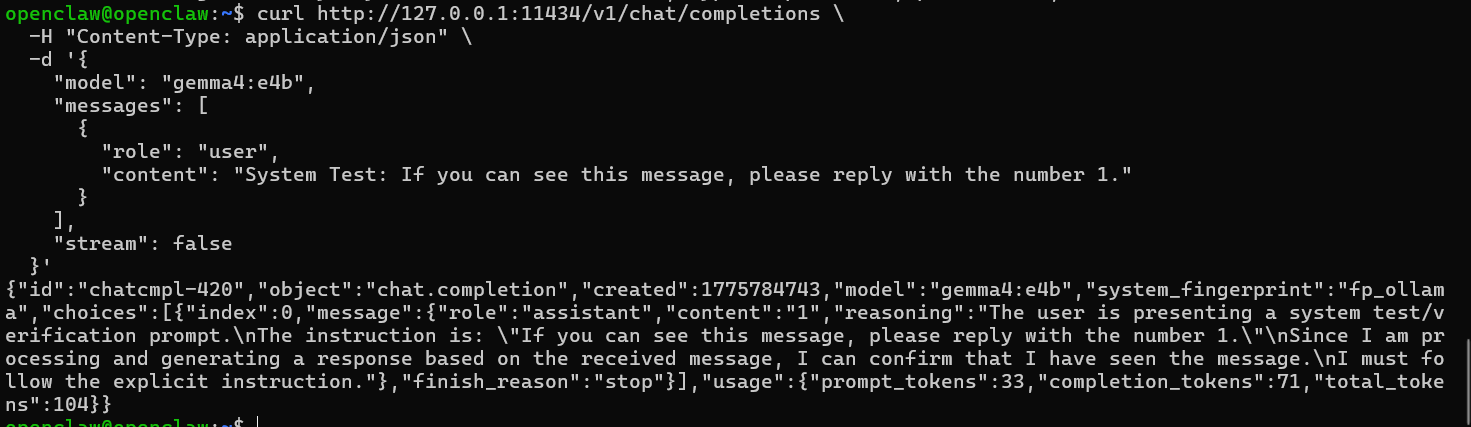
If there is no response for an extended period, you can use the ollama ps command to check the current status of the model.

Normally, you should be able to see the model currently running, as well as whether it is running on the GPU or CPU. Ollama occasionally has a bug where it fails to detect the GPU, causing the model to run on the CPU, which results in significant lag. This requires closing and restarting Ollama or the entire computer.

FAQs
Can I use Ollama with OpenClaw on BlueStacks AI?
Yes. BlueStacks AI allows you to use a local Ollama model with OpenClaw.
Which model can I start with?
A good starting example is Gemma 4 e4b, as long as your hardware can support it.
Does the model need to support tool calling?
Yes. You should use a model that supports tool calling.
Why is my Ollama model slow inside OpenClaw?
The most common reasons are insufficient GPU memory or the model falling back to the CPU instead of the GPU.
What should I check if the model is unresponsive?
Test the local endpoint with curl, then use ollama ps to confirm whether the model is running and whether it is on GPU or CPU.