Use 'Shared Folder' to Work With Files in OpenClaw on BlueStacks AI
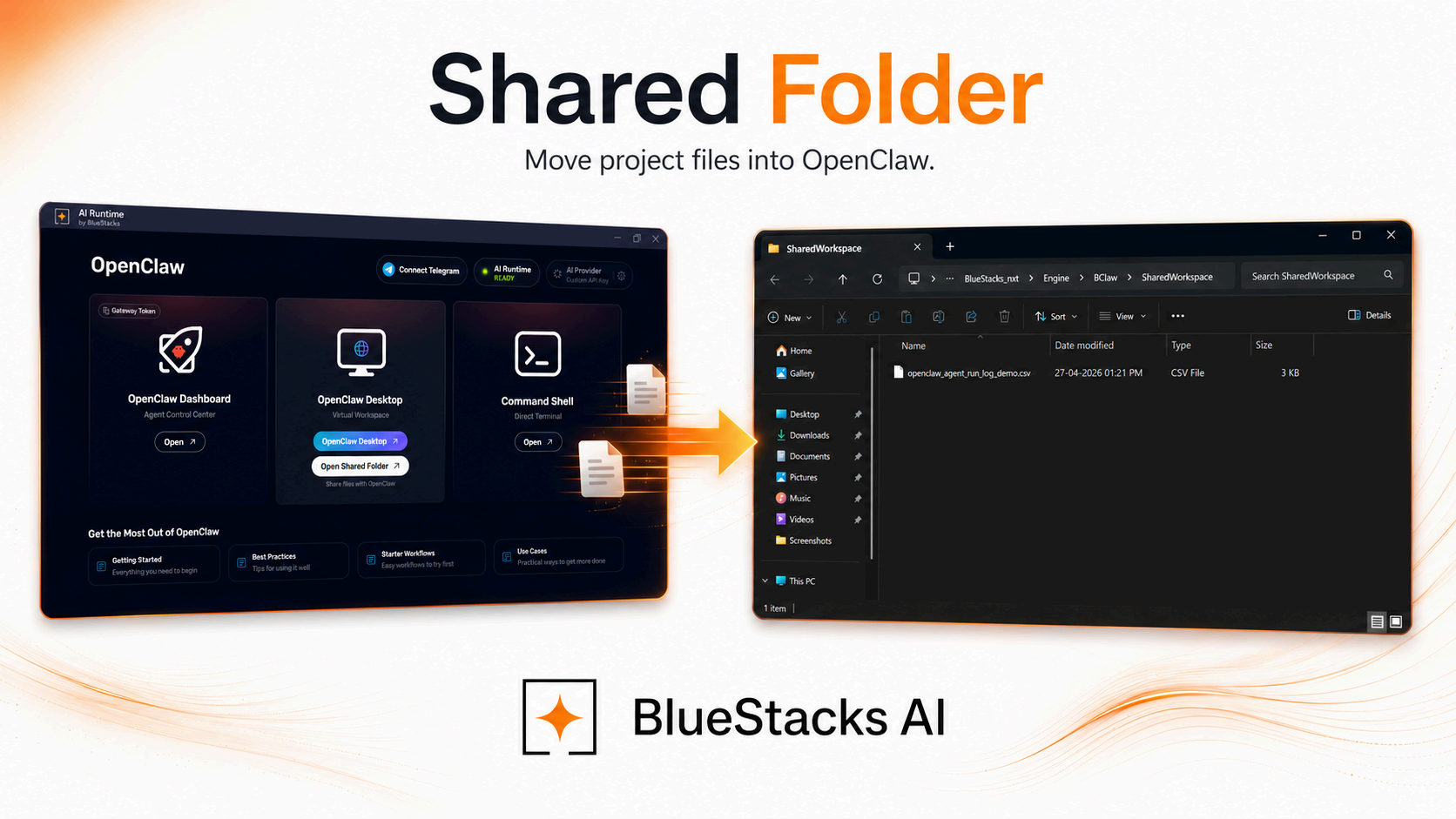
OpenClaw is far more useful when it can work with your actual files. One file is easy, but when you are dealing with scripts, logs, CSVs, documents, or project folders, copy-paste slows everything down. That is why BlueStacks AI now supports Shared Folder on Windows and Mac.
How It Works
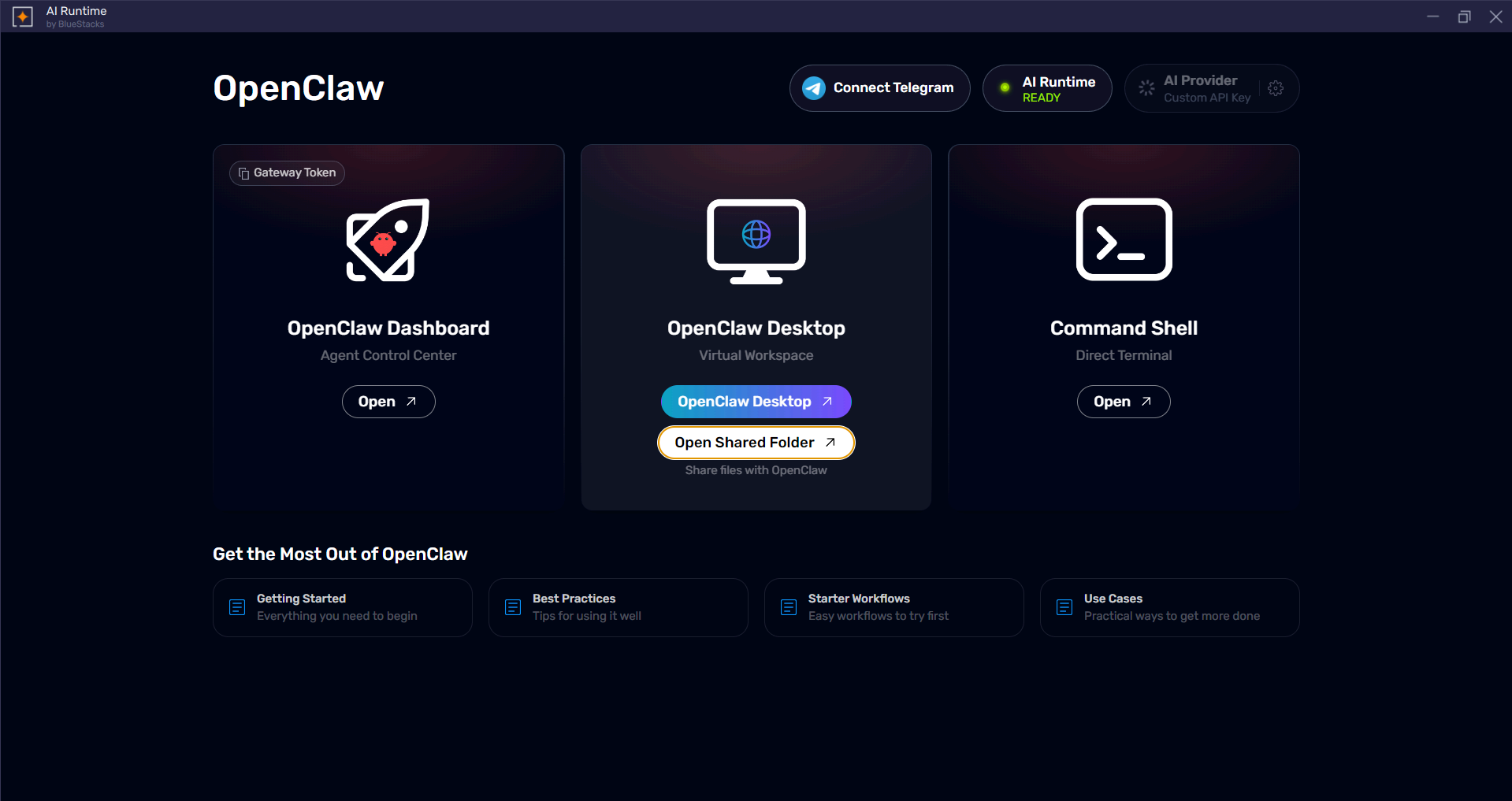
- Open BlueStacks AI.
- Click Open Shared Folder under OpenClaw Desktop.
- Add the files you want OpenClaw to use, like code, logs, CSVs, or documents.
- Open OpenClaw and ask it to work with those files.
Common Use Cases
Existing Python Code
Move a Python file into Shared Folder and ask OpenClaw to explain it, refactor it, debug it, or document it.
Small Local Projects
Add the relevant files to Shared Folder and let OpenClaw work with real context instead of pasting files one by one.
Logs and Exports
Drop in logs, CSVs, JSON files, or reports and ask OpenClaw to inspect them, summarize them, or find issues.
Output Files
OpenClaw can save scripts, notes, or processed data back into the same folder so they are easy to access from Windows.
The clipboard workaround was fine for one file. Shared Folder is built for real workflows. It removes repeated copy-paste, makes code and document handoff smoother, and gives OpenClaw a cleaner way to work with local files inside BlueStacks AI.
Try it on Windows or Mac and see how much easier OpenClaw feels when file access stops getting in the way.
FAQs
What is a Shared Folder in BlueStacks AI?
It is a folder that both Windows and OpenClaw can access, making file transfer easier.
Is this only useful for code?
No. It is also useful for logs, CSVs, JSON files, notes, and other documents.
Why not just use clipboard sharing?
Clipboard works for quick text transfer, but Shared Folder is better for multiple files and larger workflows.
Can OpenClaw save files back to Windows/Mac?
Yes. Shared Folder supports file access in both directions.